Quick disclosure before anything else: GAOMON sent me this unit to test, but they didn’t see my notes, my test drawings, or my score before publishing. Everything here is my honest experience, including the parts they’d probably rather I skip.
I’m Patricia, and I’ve been drawing digitally for over a decade, mostly characters in Clip Studio Paint & Procreate.
I tested the PD1161 V2 the way a new artist actually would: I set it up from scratch, drew on it for hours, and put it through my usual line and color tests.
This review is written for first-time pen display buyers, especially beginners and students. No spec sheet recital. Just what it’s like to draw on, live with, and learn on.
Where you can find this tablet:
- GAOMON PD1161 V2 on Amazon
- On the Official Store – use code DONCORGI for a discount!

Quick Verdict: Is The GAOMON PD1161 V2 Worth It?
Yes, if this is your first pen display and you factor in the extras. The GAOMON PD1161 V2 nails the drawing basics: a fully laminated screen with almost no parallax, a 16,384-level pen with virtually no nib wobble, and colors you can trust straight out of the box.
My score: 4 out of 5 for beginners and students. ⭐
The pen and screen on their own earn a 4.5.
What pulls it down: there’s no stand in the box, and the full-featured USB-C cable is sold separately (with specs most of the cables in your drawer won’t meet).
It sells for around $199 on GAOMON’s official product page (pricing varies by region, and GAOMON runs sales often).
Here’s the budget truth, though: this is a budget tablet if you already own a stand (or don’t need one) and a proper USB-C cable. If your drawers are missing both, add them to the real cost before comparing this tablet with anything else.
The short version:
- What I loved: the paper-like drawing feel, the battery-free pen that barely wobbles, factory-calibrated colors, and a light body that lives in a backpack.
- What held it back: no stand in the box, a USB-C cable you’ll probably have to buy, and an 11.6 inch screen that gets tight for big illustrations.
If you’re still torn between a screen tablet and a ‘blind’ one, read our guide to drawing tablets with or without a screen before spending anything.
Five minutes there can save you from buying the wrong tool for how you like to work.

GAOMON PD1161 V2 Specs At A Glance
Here’s the full spec sheet, followed by a translation into normal human words.
| Spec | GAOMON PD1161 V2 |
|---|---|
| Screen | 11.6 inches, 1920 x 1080 (FHD), 178° viewing angle |
| Active area | 256.32 x 144.18 mm |
| Display build | Fully laminated, pre-installed anti-glare film |
| Color | 99% sRGB, 99% Rec.709, 16.7M colors, ΔE<1.5 |
| Pen | G Pen (AP51), battery-free EMR |
| Pressure | 16,384 levels, 3g activation force |
| Tilt | ±60° recognition with tilt correction |
| Weight | 866g |
| Connections | HDMI + 2-in-1 cable (included), full-featured USB-C (sold separately) |
| Compatibility | Windows 7+, macOS 10.12+, Linux, Android |
| In the box | Tablet, G Pen, pen holder, 8 nibs, HDMI cable, 2-in-1 cable, drawing glove (no stand, no USB-C cable) |
Three of these specs do the heavy lifting, so let’s break them down without the jargon:
- 16,384 pressure levels: the pen reads tiny differences in how hard you press. In practice, your lines get that light-to-heavy taper you see in professional art, and your sketches stop looking like they were drawn at one constant pressure.
- Full lamination: the glass and the screen are bonded with no air gap between them. On cheaper tablets, the cursor looks like it floats a few millimeters away from the pen tip (that’s parallax). Here, the cursor sits right under the nib.
- ΔE<1.5: a color accuracy score, where lower is better. Factory-calibrated below 1.5 means the colors you see are close to the colors everyone else sees. No calibration gadget needed.
One honest heads-up: the box includes neither a stand nor the full-featured USB-C cable.
The HDMI + 2-in-1 setup you need for day one is included, so you can start drawing immediately.
But the USB-C route has spec requirements (USB 3.1 Gen 1 and DP 1.2) that most spare cables in your house won’t meet. I break that down in the setup section.

What’s New In The PD1161 V2 (Vs The Original PD1161)
The V2 isn’t a lazy re-release. GAOMON changed the exact parts that affect how drawing feels, which is rare at this price.
Here’s what’s different, based on their official comparison.
The G Pen Upgrade (AP50 To AP51)
The original PD1161 shipped with the AP50 pen: 8,192 pressure levels and a 0.8mm retraction distance.
The V2’s G Pen doubles pressure to 16,384 levels, cuts retraction to 0.3mm, adds tilt correction, and needs just 3g of force to start a stroke.
In plain terms: the pen tip barely moves when you press, so there’s almost no wobble, and your lightest touch still registers.
For a beginner still learning pressure control, that forgiveness is worth a lot.
Screen And Color Upgrades
This is the biggest change. The original had no lamination and 262K colors.
The V2 is fully laminated with 16.7M colors, 99% sRGB coverage, and factory calibration.
The difference is immediate when you draw on both. The cursor sits under the pen tip instead of floating near it, and colors look like actual colors instead of a decent guess.
Simpler Cables And New Android Support
The original needed a 3-in-2 cable plus a separate power adapter, which was one of those “wait, which plug goes where?” afternoons.
The V2 runs on HDMI + 2-in-1 with no extra power, supports optional single-cable USB-C, and now works with Android devices and Linux too.
Drawing On The PD1161 V2: My Hands-On Experience
Specs tell you what a tablet should do. Drawing on it tells you what it actually does.
I spent most of my testing time sketching characters in Clip Studio Paint, and this is where the V2 earned its score.

The G Pen: Pressure, Tilt, And (Almost) No Nib Wobble
I ran my usual pressure tests: rows of strokes from featherlight to full press, then slow spirals to hunt for wobble.
The 3g activation force is the quiet star.
My faintest sketch lines, the ones I use to build a gesture, registered without me having to press and commit. And because the nib retracts only 0.3mm, the tip doesn’t rock around when you change angle mid-stroke.
Cheaper pens have a wobble that makes your lines shaky for reasons that have nothing to do with your skill. Not this one.
Tilt correction works as advertised too. When I shaded by angling the pen like a pencil, the cursor stayed where the nib actually was instead of drifting off.
Since it’s battery-free EMR, there’s no charging ritual either. You pick it up and draw, every single time.

The Screen: Full Lamination, Anti-Glare, And Color
Parallax check first. At the center of the screen, cursor and nib are one. At the far corners there’s a hair of offset, but I had to squint to find it. That’s full lamination doing its job.
The pre-installed anti-glare film is the other half of the experience.
It kills most reflections (my window sits right beside my desk & bed, and the screen stayed readable) and adds a matte, papery drag under the nib.
Drawing on it feels closer to pencil on paper than glass on glass.
Colors arrived calibrated. I didn’t touch a single setting, and the skin tones in my test character looked the same on the tablet as on my main monitor.
One limitation: at 220 nits, brightness is fine indoors but washes out in direct sunlight. Draw in the shade if you take it outside.
Is 11.6 Inches Enough?
My honest answer: for sketching, gesture practice, studies, and single characters, yes, easily.
It’s a comfortable middle size, bigger than a phone and far less desk-hungry than the 16-inch displays I’ve used. For full illustrations with a reference window, brush panels, and a layer stack fighting for space, it gets cozy.
You can collapse panels and lean on the shortcut keys, and I got comfortable after a day. But if you dream of painting big, detailed scenes, a larger screen will serve you better.
What you get in exchange is real portability.
At 866g, it fits in a backpack’s laptop pocket without a fight.
Students, this is the “slip it in your bag between classes” tablet.
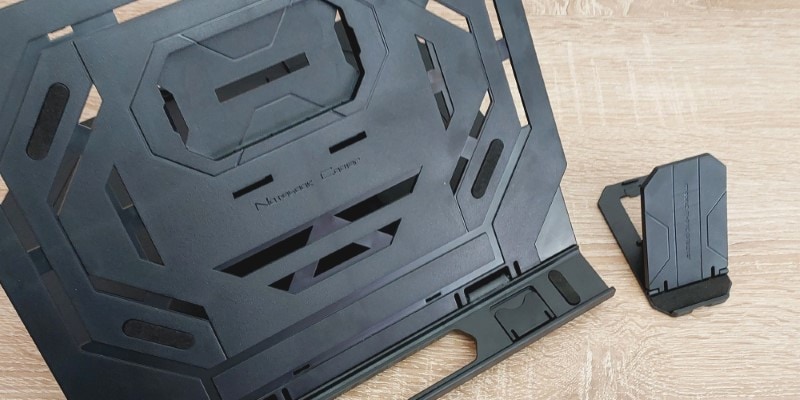
The Missing Stand: Bring Your Own Prop
Here’s my biggest gripe with the V2, and honestly with most pen displays in this price range: there’s no stand in the box.
As a pen tablet, lying flat is fine. As a display, you want the screen propped at an angle you can draw on for hours, and GAOMON expects you to sort that out yourself.
(Seriously, when are built-in stands going to become standard on these things?)
The good news: any adjustable tablet stand will do, and decent ones are cheap.
A laptop riser or a stack of sketchbooks works in a pinch. Just count the stand as part of the real price, because for a display tablet, it’s non-negotiable in my book.
Shortcut Keys And Everyday Workflow
The V2 keeps it simple. Eight shortcut keys on the side come preset for common actions, plus five physical OSD keys (power, menu, brightness) and two buttons on the pen itself.
I mapped undo, eraser, zoom, and brush resize within an hour, and after that I barely touched my keyboard.
Presets matter more than they sound for a new artist. You don’t have to research what to customize before you can start drawing. You just start, and tweak later.
And because the whole thing is simple and light, it sets up fast anywhere: my desk, a café table, a classroom corner. Enough buttons to matter, not so many that you need a manual.
The box also includes a drawing glove, which keeps your palm from sticking to and dragging across the screen.
If you’re new to the idea, here’s why artists wear drawing gloves.

Setting It Up: Cables, Drivers, And Devices
Setup is where budget tablets usually embarrass themselves. This one behaved, mostly.
Connecting To Windows, macOS, And Linux
Out of the box, you use the HDMI cable for the picture and the 2-in-1 cable for data and power.
Plug both into the tablet and your computer, install the driver from GAOMON’s website, and you’re drawing. My install took about 15 minutes on Mac: the laptop extended the display instead of mirroring it. I use it like that so I can watch a video on the other screen while drawing.
If your laptop is USB-C only, GAOMON sells a full-featured USB-C cable that connects everything with a single cord.
Check two things before ordering: your port must support DP 1.2, and the cable must meet the USB 3.1 Gen 1 standard.
This matters more than people expect. USB-C cables are not created equal.
The pile in your drawer is probably charging-only, and even data cables often can’t carry a display signal. A cable without the right specs will power the tablet and give you no image at all.
So if you go USB-C, buy the proper cable instead of hoping an old one works.
Connecting To Android Devices
Yes, the V2 can connect to Android devices, and it’s listed as a feature.
In practice, here’s what it takes: the HDMI cable, the 2-in-1 cable, a docking station, and a power adapter to feed everything enough power.
My test setup looked like a small cable festival on the desk, and that was the tidy version. 😅
The apps themselves are fine, HiPaint and MediBang Paint handle pen pressure well. The wiring is the problem.
So no, I can’t recommend this tablet for phone drawing. If drawing on your phone is the goal, a simple pen tablet is a comfier companion (something small like the Ugee S640).
And if you want a standalone screen you can draw on anywhere with zero cables, an Android drawing tablet like the Ugee Fun Drawing Pad UT2 or the Huion Kamvas Slate 11 is the better buy.
Pen Tablet Mode: Two Devices In One
Hidden bonus: the V2 doubles as a “blind pen tablet”, a regular drawing tablet.
If the display is off, connecting the USB cable to your laptop puts it in tablet mode (if it’s on, power it off first, then reconnect the cable).
You lose the screen and gain a distraction-free, pen-on-desk workflow, which is always useful to have in your back pocket.
I use it when I want to focus on strokes instead of staring at my mistakes in full color.

Is The GAOMON PD1161 V2 Good For Beginners And Students?
This is the question that actually matters, and honestly, it’s this tablet’s whole personality.
Why It Works As A First Pen Display
Three reasons, from my testing:
- The price is budget-conditional. Around $199 (varies by region) is genuinely cheap for a laminated screen plus a 16,384-level pen. The asterisk: no stand and no USB-C cable in the box. Already own both? This is one of the best-value first displays around. Own neither? Add them to the total before you call it budget.
- It works before you know anything. Preset shortcuts, calibrated colors, a battery-free pen. There’s no configuration rabbit hole between unboxing and your first sketch.
- It eases the move from paper. The matte, papery surface and the forgiving 3g activation force make early digital drawings feel less alien. Your first week of digital art is mostly your hand relearning coordination, and this tablet is patient with that process.
Where It Might Frustrate You
In fairness, the flip sides:
- There’s no stand in the box, and for a pen display, a stand is non-negotiable.
- The full-featured USB-C cable is a separate purchase, and it has spec requirements your existing cables probably don’t meet.
- Connecting to a phone technically works, but the cable situation is a mess, so I’d point you elsewhere for phone drawing.
- The 11.6 inch screen is tight for complex, panel-heavy illustrations.
- It needs a computer. This is not a standalone tablet.
- At 220 nits, direct sunlight is not your friend.
What To Practice Once It’s Out Of The Box
Real talk for your first week: your lines will wobble, and that’s normal.
It’s not the tablet. It’s your hand-eye coordination recalibrating to a new surface, and everyone goes through it. (I did it twice, once for my first tablet and again when I moved to displays.)
Our drawing tablet exercises were made for exactly this moment: line control drills, pressure practice, and coordination warm-ups you can finish in 15 minutes a day.
You don’t need fancy software to start either, our free drawing software guide covers options like Krita that run great with this tablet.
If you want something more guided, my bite-sized drawing challenges on Skillshare (1-month free trial) are a fun way to break in a new screen.

GAOMON PD1161 V2 Pros And Cons
PROS
- Fully laminated screen with almost no parallax
- 16,384 pressure levels, tilt correction, and a 3g activation force
- Battery-free EMR pen, no charging ever
- Anti-glare film with a paper-like drawing feel
- Factory-calibrated colors (ΔE<1.5, 99% sRGB)
- Shortcut keys that work before you customize anything
- Simple, light, quick to set up at any workspace
- Doubles as a pen tablet
- Works with Windows, macOS, and Linux
CONS
- No stand in the box, and a pen display really needs one
- 11.6 inches is small for big, detailed illustrations
- Needs a computer, it’s not standalone
- Full-featured USB-C cable sold separately, and it must meet USB 3.1 Gen 1 + DP 1.2 (your spares probably don’t)
- Android connection works, but it needs a dock and power adapter, and the cable mess isn’t worth it
- 220 nits struggles in direct sunlight
GAOMON PD1161 V2 Vs The Competition
Vs The Original PD1161
If you spot the original on deep sale, it’s still a decent tablet. But the V2’s full lamination and new G Pen are the two upgrades that change how drawing feels, and they’re exactly what I’d pay the difference for.
Unless the V1 is nearly half price, go V2.
Vs The Huion Kamvas 13
The Kamvas 13 is one of the most recommended beginner pen displays around, and it gives you a bigger 13.3 inch canvas. I have more info in my Huion Kamvas 13 review.
The short version: the Kamvas 13 suits you if screen space is your priority, while the PD1161 V2 wins on portability and usually costs a bit less.
Other Budget Pen Displays To Consider
One tablet is never the whole story.
Before you commit, check how the V2 stacks up in our roundup of cheap drawing tablets with screens. It covers the strongest budget options so you can buy once and get it right.
Frequently Asked Questions
Is the GAOMON PD1161 V2 good for beginners?
Yes. It’s one of the most beginner-friendly pen displays in its price range, thanks to preset shortcut keys, a factory-calibrated screen, and a paper-like surface that feels close to real paper. The forgiving 3g activation force also helps you get light sketch lines without pressing hard.
What is the difference between the GAOMON PD1161 and PD1161 V2?
The V2 doubles pressure sensitivity from 8,192 to 16,384 levels, adds tilt correction, upgrades to a fully laminated screen with 16.7M colors, and adds Android and USB-C support. The pen retraction distance also drops from 0.8mm to 0.3mm, which noticeably reduces nib wobble.
Does the GAOMON PD1161 V2 come with a stand?
No, the GAOMON PD1161 V2 doesn’t come with a stand. The box includes the tablet, the G Pen, a pen holder, eight spare nibs, the HDMI and 2-in-1 cables, and a drawing glove, so you’ll need to prop the display yourself or buy a cheap adjustable stand separately.
Does the GAOMON PD1161 V2 work without a computer?
No. It’s a pen display, not a standalone tablet, so it needs a computer (or an Android device with a dock) to run your drawing software and feed the screen. If you want a standalone device, an Android drawing tablet or an iPad is the better fit.
Can you connect the GAOMON PD1161 V2 to an Android phone?
Yes, but it needs the HDMI and 2-in-1 cables plus a separate docking station and power adapter, and the resulting cable mess makes it hard to recommend. For phone drawing, a small pen tablet or a standalone Android tablet like the Ugee Fun Drawing Pad UT2 is a much comfier fit.
Final Verdict
The GAOMON PD1161 V2 (Amazon link) is the tablet I’d hand to a friend who says “I want to try digital art but I’m scared of wasting money,” with one condition: budget for a stand, and for the USB-C cable if your laptop needs one.
Once those are sorted, you get an affordable display that doesn’t feel cheap, calibrated colors without a color science degree, and a drawing experience you won’t outgrow in six months.
The G Pen alone justifies it: 16K pressure, tilt correction, no charging, and a 0.3mm retraction that keeps your lines steady while your hand is still learning.
Buy it if you’re a beginner, a student, or a hobbyist who wants a first screen, especially if you already own a stand and a proper USB-C cable (or don’t mind adding both to the total).
Skip it if you need a standalone tablet, lots of canvas space, or a phone-first drawing setup. For couch and phone drawing, a small pen tablet or a standalone Android tablet will serve you better.
And remember: the tablet is the easy part. The skill is the fun part, and that part is 100% trainable.
💡 Want to take this further? The tablet is the easy part, so let’s handle the rest. The Art Foundation Kit bundles five beginner-friendly courses for $39.99 (a $142 value): complete figure drawing, gesture, finding your art style, digital coloring, and kawaii cats. Everything you need to fill that brand new screen with characters you’re proud of, step by step.
Keep on drawing!
– Patricia 🥰

Patricia Caldeira is the main writer here at Don Corgi. She's an art teacher with over 20.000 happy students across many platforms and courses!
Enjoy your stay and as always:
Keep on drawing!
Patricia’s courses have enrolled 22 000+ students around the world, in platforms such as Udemy, Skillshare, Gumroad and more.