You’ve probably wondered if there’s a drawing tablet that can truly replace your desktop setup when you’re working remotely.
The Huion Kamvas Slate 13 promises exactly that: a portable studio that fits in your backpack.
I’ve spent weeks testing this device, and the results might surprise you.
While it delivers impressive performance in some areas, there’s one significant drawback that could make or break your decision.
Want to check it out right away? Find it on:
- Amazon: Huion Kamvas Slate 13
- Huion Store: Huion Kamvas Slate 13
Key Takeaways
- The Kamvas Slate 13 offers some portability at 7.5mm thin and 682g weight, ideal for mobile creative professionals.
- Features a high-quality 12.7-inch QHD display with 99% sRGB color accuracy and natural pen-on-paper drawing experience.
- Delivers robust performance with MediaTek Helio G99 processor, 8GB RAM, and impressive 14-hour battery life for all-day work.
- Pre-loaded with creative apps like IbisPaint X and supports popular software including Clip Studio Paint for immediate productivity.
- Limited by Android 14 compatibility issues, lack of desktop software support, and outdated USB 2.0 connectivity for professionals.
Introduction to the Huion Kamvas Slate 13
Whether you’re a seasoned artist sketching concepts between meetings, a creator building content on the go, or a professional who needs reliable tools that multitask as well as you do, this tablet understands your workflow.
I’ve found that the best creative devices are the ones that disappear into your process rather than demanding attention, and the Kamvas Slate 13 seems designed with exactly that philosophy in mind.
Kamvas Slate: Practical, Easy, Go
Althoug a bigger tablet, the Kamvas Slate 13 is still somewhat portable and allows you to draw and work on the go!
At just 682g and measuring 280.6 x 211.8 x 7.5mm, it’s surprisingly lightweight for its capabilities. Comparing with smaller tablets, such as the Kamvas Slate 10 (500g) the weight difference isn’t that great.
The Huion Kamvas Slate 13 runs Android 14 with pre-installed creative apps, eliminating the need for a separate computer.

With 256GB built-in storage and a 10,000mAh battery lasting 14 hours, you’re equipped for extended creative sessions without hunting for power outlets.
Target Audience: Creators, Artists, Multitaskers, Professionals
This portable drawing tablet adapts to your workflow, whether you’re sketching concepts during lunch breaks, editing photos on location, or presenting ideas to clients.
The Kamvas Slate 13 features include 8GB RAM and Android 14, making multitasking smooth for professionals juggling creative apps.
Digital artists and illustrator will appreciate both the 4096 pressure levels, and the paper-like texture of the screen.
Photographers can edit directly on the 2.5K display, and designers will love the 99% sRGB color accuracy for precise work.
What’s Inside the Box
When you unbox the Kamvas Slate 13, you’ll find everything you need to start creating right away:
- 1 x sleek 12.7-inch Android tablet
- 1 x H-Pencil
- 3 x Spare Nibs
- 1 x USB-C Cable
- 1 x Drawing Glove
- 1 x Folio Cover
- 1 x Card Eject Tool
- 1 x Quick Guide

I’ve always appreciated when companies include spare nibs from the start – it shows they actually understand how artist’s needs . The new drawing glove is also a great upgrade, with the extra padding for extra comfort!
The Kamvas Slate 13 Tablet
Unboxing the Kamvas Slate 13 feels like Christmas morning for digital artists.
Inside, you’ll find the tablet itself, perfectly nestled in protective foam, alongside the H-Pencil stylus that’ll become your new best friend.
Although I find it less portable than other, small tablets such as the Huion Slate 11, it does stike me that this drawing tablet has a surprisingly slim profile at just 7.5mm thick!
The folio cover is also very beautiful and professional. Easy to use and it even works as a stand, even though the angles are quite limited.
H-Pencil
The H-Pencil has a very simple design, made to feel as close as possible to an actual pen or pencil.
It features 4096 pressure levels and ±60° tilt support, which is the standard level for these standalone drawing tablets.
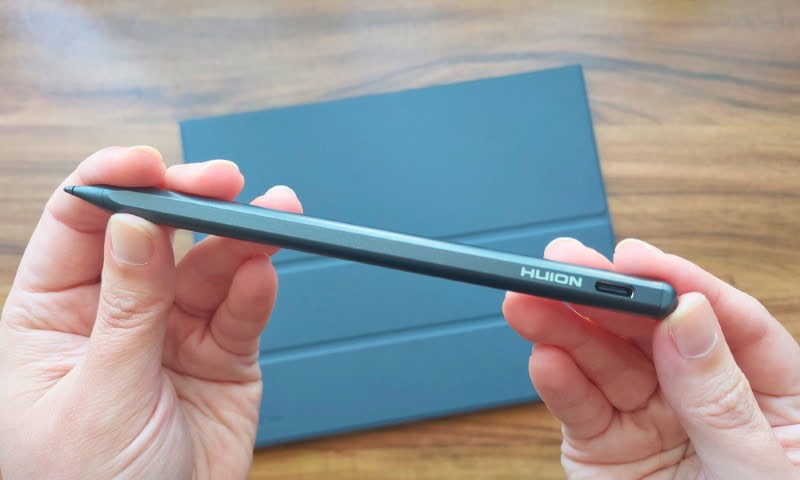
One great feature about it is the H-Pencil is the Quick Extra Key at the back. This key acts as a shortcut key and can even be customized when using HiPaint or ibisPaintX.
I often used Clip Paint Studio while testing this tablet and even though the key isn’t customizable, it still works and will act as an eraser when pressed.
Overall, it’s a very useful feature while drawing!
The H-Pencil feels surprisingly natural, mimicking that pen-on-paper sensation you’ve been craving.
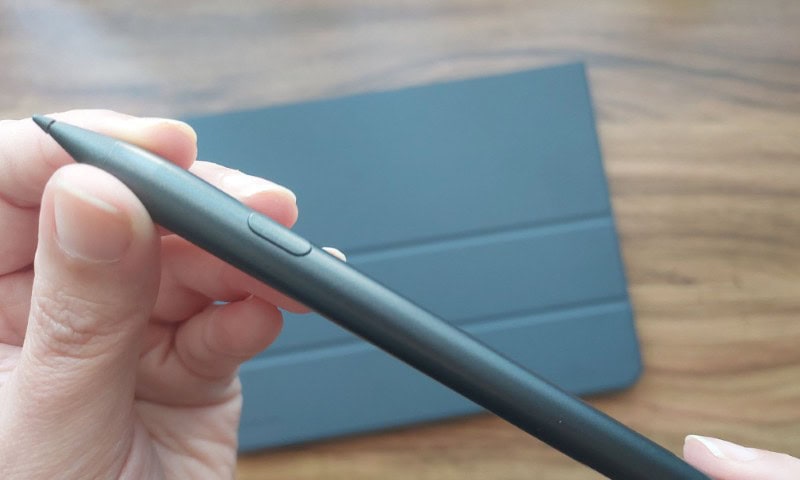
On the other hand, for better ergonomics, I highly recommend using a pen grip for better comfort when drawign for long hours.
Another downside (although common for every Android drawing tablet) is the fact that the pen needs to be recharged through a USB-C cable. However, so far, the pen’s battery is flawless!
Accessories (e.g., Charger, Cables, Pen Nibs)
Beyond the H-Pencil itself, you get 3 replacement pen nibs, to change whenever needed, along with a very comfortable drawing glove that now features extra padding!
The USB-C cable feels sturdy enough, even if maybe a bit on the shorter side in case you want to recharge your tablet and use it at the same time.

Although there’s a cable included, I’m somewhat disappointed about the fact that we do not receive a charger along with the cable.
On the one hand, it does make the tablet more affordable and I can understand that, on the other, if your device needs to be recharged (pen included!) then it should come with a charger included!
But overall, everything has great quality and the perfect number of accessories to carry with you.
Design and Build Quality
The overall design and quality of the Kamvas Slate 13 exceeds expectations.
For it’s size, it’s an incredibly slim and beautiful tablet. Even with the folio cover, your tablet will keep a sleek look, while easy to carry.

Everything looks very professional without being boring. The H-Pencil is also smaller and an upgrade from the pencil included with the Huion Kamvas Slate 10.
You can tell Huion put thought into the materials and construction, creating a device that feels premium without the chunky bulk you’d expect from a drawing tablet.
Portability and Ergonomics
Although a bigger tablet, I feel it’s still very portable!
This is really depends on your preferences. The Kamvas Slate 13 is going to be heavier than the Slate 11 or even 10, but the difference isn’t so great and it’s hard to notice.
The biggest difference is indeed the size and if you enjoy drawing on bigger canvas, this is a great option!

Although big, it’s quite slim, so it can easily fit a backpack or purse without taking much space.
As for ergonomics, the H-Pencil is indeed comfortable, but for better results I highly recommend a grip, as mentioned before. This way your hand won’t tire as easily.
The folio cover is excellent to protect your tablet from accidents, but although it doubles as a stand, I find the angles too limited.

You can set it at two different angles, that are almost vertical.
If you’re open to creativity, you can set it differently, I did manage that and was able to draw with no issues!
It’s also a bit difficult to understand how the stand works, as it’s not very straightforward.
Neverthless, as a protective case, it’s very high-quality with a wonderful, minimal and professional design.
Display Deep Dive: The 12.7-inch Canvas
You’ll immediately notice the Kamvas Slate 13’s 12.7-inch display commands attention with its impressive 2176×1600 QHD resolution and 212 PPI density.
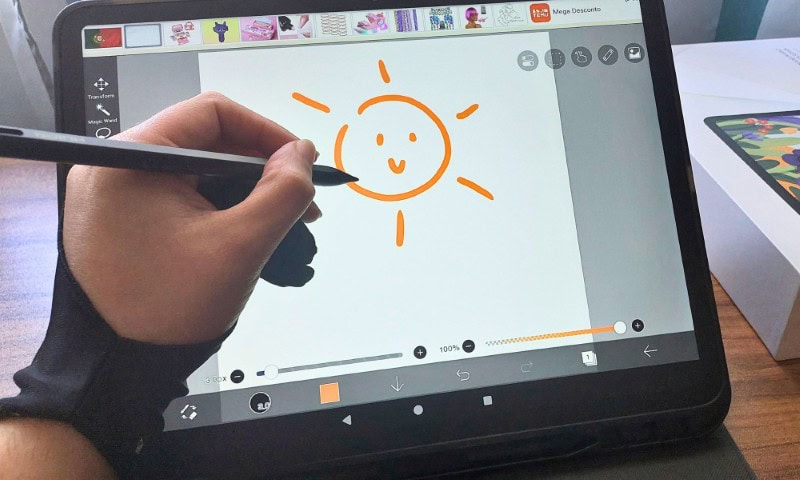
The 4:3 aspect ratio feels invigoratingly spacious compared to typical widescreen tablets, giving you more vertical room for sketching portraits or working with documents that don’t feel cramped.
With an 86% screen-to-body ratio, you’re getting maximum canvas area without unnecessary bezels eating into your workspace.
I’ve found this screen size hits that sweet spot where it’s large enough for serious creative work but still portable enough to toss in your bag without feeling like you’re carrying a laptop.
Visual Experience
You’ll immediately notice how the Kamvas Slate 13’s 99% sRGB color gamut delivers strikingly accurate colors that make your artwork pop off the screen, whether you’re sketching character designs or painting digital landscapes.

The nano-etched matte surface, with anti-glare technology works like magic to eliminate that annoying glare that usually forces you to hunt for the perfect lighting angle, and honestly, it’s a game-changer for long drawing sessions.
On-Screen Experience
You’ll notice right away that the Kamvas Slate 13’s screen stays surprisingly clean during long drawing sessions, thanks to its anti-fingerprint coating.
This feature becomes especially valuable when you’re switching between pen and touch gestures, since smudges won’t build up and distract from your artwork!
Features for Comfort and Extended Use
When you’re settling in for those marathon drawing sessions, comfort becomes just as important as performance, and the Kamvas Slate 13 delivers on both fronts.
The built-in audio system features four speakers that create genuine stereo sound, which means you can actually enjoy your music or tutorials without constantly reaching for headphones.
With its impressive 10,000mAh battery providing up to 14 hours of use, you won’t find yourself frantically searching for outlets mid-project like I used to with my old tablet.
HiPaint, HiNote, Clip Studio Paint, Ibispaint X
When you unbox the Kamvas Slate 13, you’re not just getting impressive hardware – you’re also receiving a complete creative ecosystem that’s ready to use right out of the gate.
- HiPaint offers professional-grade drawing tools with layer support.
- HiNote handles digital note-taking and sketching seamlessly.
- Clip Studio Paint and Ibispaint X tablet apps provide industry-standard illustration capabilities.

It’s not only very easy to setup your new tablet, you also have several drawing apps ready to use!
Battery Life
You’ll love the massive 10,000mAh battery that powers the Kamvas Slate 13, giving you up to 14 hours of continuous use for those marathon drawing sessions.
I’ve found that having this much battery life means you can actually take it on long trips or work outdoors without constantly hunting for power outlets.
Plus, when you do need to charge it, the fast charging feature gets you back to creating within just 3.3 hours, which is pretty impressive!
Camera
Although not a necessary feature, I was pleasantly surprised with the cameras on the Huion Slate 13.
We got a front camera with 8MP and a rear camera with 13MP. These are perfect if you need to take some reference photos for your work.

If you do a lot of note taking and maybe even journal digitally, you can take beautiful pictures using this tablet.
It might even be enough for taking photos of your work and products!
Pros and Cons
You’ve seen what the Kamvas Slate 13 can do, but like any device, it comes with both strengths and weaknesses that’ll affect your creative workflow.
I’ve spent considerable time testing this tablet, and while there’s plenty to love about its display and battery life, some limitations became apparent during real-world use.
Let’s break down the key advantages and drawbacks you should consider before making your purchase decision.
PROS
- Display Excellence: The 12.7″ QHD screen delivers crisp 2176×1600 resolution with nano-etched coating that reduces glare beautifully. I’ve found the 86% screen-to-body ratio creates an immersive drawing experience.
- All-Day Battery Life: That 10,000mAh battery genuinely lasts 14 hours, meaning you won’t scramble for chargers mid-project.
- Natural Drawing Feel: The H-Pencil’s 4096 pressure levels feel remarkably responsive, almost like traditional sketching.
- Easy to Setup and Ready To Use: All you need is to turn on the tablet, go through a quick setup and everything is ready to use. There are even several drawing apps installed, so all you need is to pick one and start drawing.
Despite its impressive features, the Kamvas Slate 13 isn’t without some notable drawbacks that you should consider before purchasing.
CONS
- A Heavy Drawing Tablet: The 682g weight, while portable, can feel hefty during extended handheld sessions.
- Aspect Ratio: The 4:3 aspect ratio won’t appeal to everyone, especially if you’re used to widescreen formats.
- A Bit Laggy at Times: Android 14 occasionally feels sluggish with resource-heavy apps, and the USB 2.0 port seems outdated in 2025.
Additionally, you’ll miss desktop software compatibility, which might frustrate professional artists who rely on Photoshop or Illustrator for serious work.
Conclusion and Final Thoughts
After spending considerable time with the Kamvas Slate 13, you’re looking at a device that genuinely delivers on its promise of portable creativity.
The combination of that gorgeous 2176*1600 display, natural-feeling H-Pencil, and impressive 14-hour battery life makes this tablet a solid choice for artists who need flexibility in their workflow.
However, you’ll want to weigh the premium price against your specific needs, especially if you’re just starting your digital art journey or already own a capable drawing tablet.
Who Should Buy the Huion Kamvas Slate 13?
Who exactly should consider adding the Kamvas Slate 13 to their creative arsenal?
You’re perfect for this device if you’re a digital nomad artist, student, or professional who values portability without sacrificing quality.
The 14-hour battery life and 682g weight make it ideal for coffee shop sketching sessions or airplane creativity.
Grab the Kamvas Slate 13 here:
- Amazon: Huion Kamvas Slate 13
- Huion Store: Huion Kamvas Slate 13

If you’re shifting from traditional to digital art, you’ll love the pen-on-paper feel.
However, if you’re primarily a desktop user or need maximum screen real estate, larger displays might suit you better.
The same goes if you’re a beginner artist starting digital art. Although an excellent tablet, starting with something smaller might be a good idea, especially if you’re on a budget!
(for example, the Huion Kamvas Slate 10, which I Cover Here!)
This tablet bridges the gap between convenience and capability beautifully.
Ready to start drawing?
👉 Grab one of my drawing courses right here! (on sale for a limited time)

Patricia Caldeira is the main writer here at Don Corgi. She's an art teacher with over 20.000 happy students across many platforms and courses!
Enjoy your stay and as always:
Keep on drawing!
Patricia’s courses have enrolled 22 000+ students around the world, in platforms such as Udemy, Skillshare, Gumroad and more.